

Paramount Plus Cancel Subscription: UK Steps (Apple/Google/Web)
Start with one check: who bills you. Then cancel in the right place (Paramount+, Apple, Google Play, Amazon, Sky or Roku) and keep proof so you don’t get charged again.

Quick Answer
How to cancel Paramount+ subscription
To cancel a Paramount+ subscription, you need to cancel it in the same place you started it. That’s usually one of these:
- Paramount+ bills you directly: cancel in your Paramount+ account on the web.
- Apple bills you: cancel in Apple ID → Subscriptions.
- Google Play bills you: cancel in Google Play → Subscriptions.
- Amazon bills you (Prime Video Channels): cancel the Paramount+ channel in your Amazon subscriptions.
- Sky bills you: cancel through your Sky account.
- Roku bills you: cancel in your Roku account subscriptions.
After you cancel, take a screenshot showing the expiry date (or keep the confirmation email) and check your statement next month to be sure the renewal stopped.
Why this matters for credit score readers
Cancelling Paramount+ won’t change your UK credit score by itself. But it can reduce the small “cash flow shocks” that cause bigger problems: going into an unarranged overdraft, bouncing a direct debit, or missing a minimum payment.
If you’re getting ready for a mortgage, car finance, or even a mobile contract, the calm goal is simple: fewer surprises in your outgoings.
If your score has dipped recently, start here first: Why Has My Credit Score Gone Down? A Calm UK Checklist.

Two-Minute Check
Before you cancel: confirm who bills you
This is the step that saves time. If you cancel in the wrong place, you can end up thinking it’s cancelled when it isn’t.
- Search your email for a receipt mentioning Apple, Google Play, Amazon, Sky, Roku, or Paramount+.
- Check your bank statement: is the merchant “Paramount”, “Apple”, “Google”, “Amazon”, “Sky”, or “Roku”?
- Open subscriptions on your device:
- Apple: iPhone Settings → your name → Subscriptions (see Apple’s official steps).
- Google Play: Play Store → profile → Payments & subscriptions → Subscriptions (see Google’s official steps).
If you see Paramount+ listed under Apple or Google, cancel it there. Paramount+ usually can’t stop an app-store subscription for you.
Option 1: Cancel if you pay Paramount+ directly
If Paramount+ bills you directly, you typically cancel from your account on the Paramount+ website. Menu labels can change, but the pattern is consistent: sign in, find account or subscription settings, then cancel and keep the confirmation.
- Go to the Paramount+ website and sign in to your account.
- Open Account (or Subscription / Billing).
- Select Cancel subscription (or Cancel).
- Confirm cancellation and note the end date.
If you can’t see the cancellation option, use Paramount+ support to confirm who bills you and the effective end date: Paramount+ Help.

Option 2: Cancel Paramount+ if you subscribed through Apple
If Apple is billing you, cancel in your Apple ID subscriptions (not inside Paramount+):
- Open Settings on your iPhone.
- Tap your name → Subscriptions.
- Select Paramount+.
- Tap Cancel Subscription and confirm.
If there’s no cancel button, Apple notes it may already be cancelled: Apple: cancel a subscription.

Option 3: Cancel Paramount+ if you subscribed through Google Play
If Google Play is billing you, cancel it in Google Play subscriptions:
- Android: Google Play → profile icon → Payments & subscriptions → Subscriptions → Paramount+ → Cancel.
- Web: play.google.com/subscriptions → select Paramount+ → cancel.
Google’s help page covers cancellation timing and what happens after: Google Play: cancel, pause or change a subscription.

Option 4: Cancel Paramount+ if you’re billed by Amazon (Prime Video Channels)
If you subscribed to Paramount+ as a Prime Video Channel, you cancel it in your Amazon account (not in the Paramount+ app). Look for the memberships/subscriptions area and switch off auto-renew for the channel.
Amazon’s help pages for managing subscriptions can help you find the right screen if menus move: Amazon: memberships and subscriptions.

Option 5: Cancel Paramount+ if you’re billed by Sky
If Paramount+ is included as an add-on through Sky, cancellation is handled in your Sky account (or via Sky support). The key is that you’re cancelling the Sky-billed add-on, not your Paramount+ login.
If you’re not sure whether Sky bills you, your bank statement will usually make it obvious.
Timing, renewals, and refunds
Most subscriptions work like this: cancelling stops future renewals, and you keep access until the end of the current paid period. The exact wording can vary by platform and plan.
- Cancel early: app stores can process renewals ahead of the renewal moment.
- Take proof: screenshot the end date or keep the confirmation email.
- Refunds aren’t automatic: they depend on who billed you and the policy for that platform.
If you’re cancelling because money feels tight, you’re not “failing at budgeting”. You’re doing maintenance: removing a monthly charge you’re not using.
Troubleshooting: if it still won’t cancel
- You’re cancelling in the wrong place: go back to the “who bills you” check.
- You’re in the wrong account: old Apple IDs, Google accounts, or Amazon logins are a common reason you can’t see the subscription.
- You deleted the app: uninstalling doesn’t stop billing.
- Renewal processed already: you may still have access for the rest of the billing period.
- Avoid scam links: don’t click random “cancel now” emails. Use official app settings or official support pages.
If you’re stuck and you think you were charged unfairly, Citizens Advice has clear consumer guidance for the UK: Citizens Advice: consumer.

Does cancelling Paramount+ affect your credit score?
For most people: no. Paramount+ isn’t a credit account reported to UK credit reference agencies.
What can matter indirectly is whether the renewal charge causes problems elsewhere (like slipping into an unarranged overdraft). If that’s relevant for you, this guide can help: Does Overdraft Affect Credit Score? UK Guide.
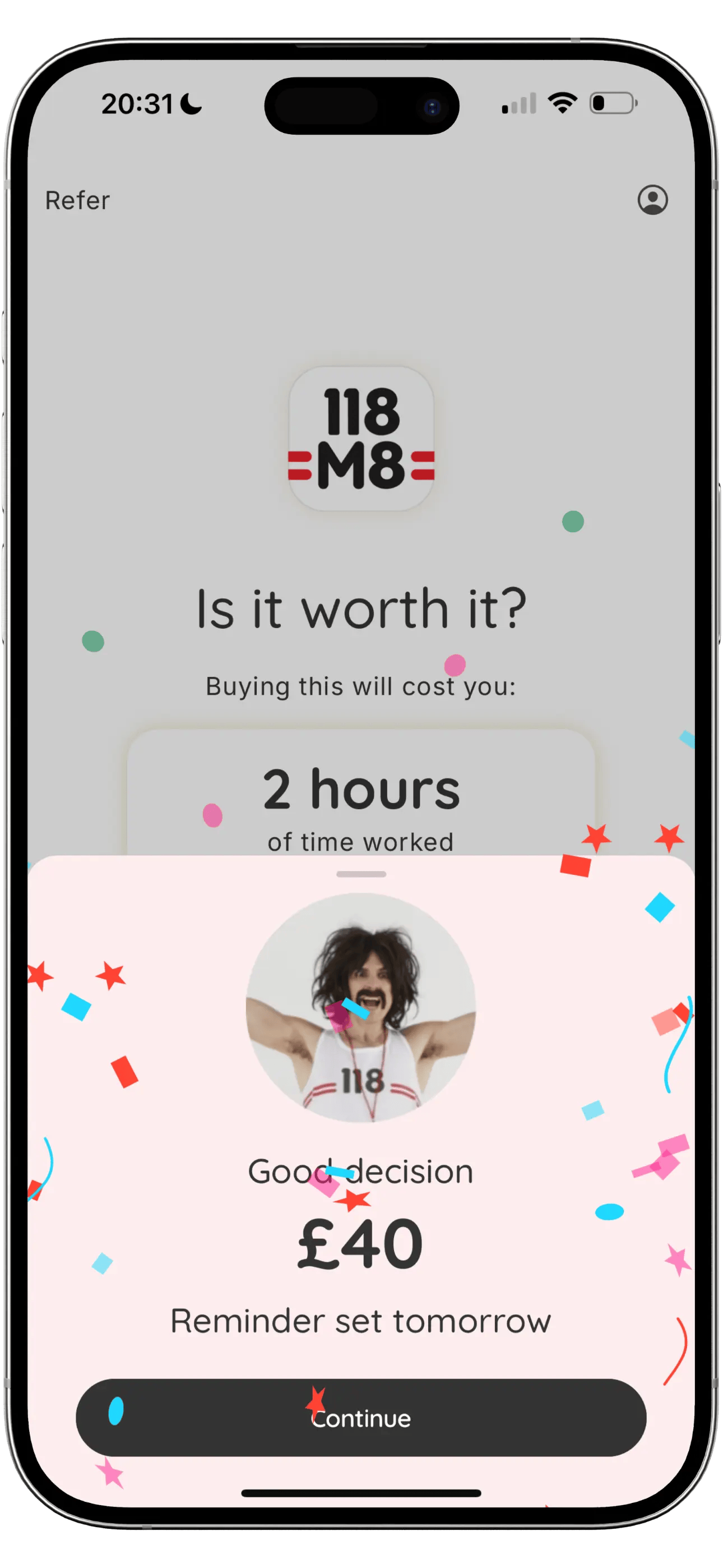
Use 118M8 to make subscriptions feel clearer
Subscriptions tend to restart in a moment of convenience. 118M8 helps you slow that moment down by translating the cost into hours worked and giving you a simple 24-hour “Sleep on it” pause.
- Turn any subscription price into hours
- Pause a decision for 24 hours
- Track what you save when you skip
Keep reading: Subscriptions · Credit Scores
Frequently Asked Questions
Why can’t I cancel Paramount+ in the Paramount+ app?
If you subscribed through Apple, Google Play, Amazon Prime Video Channels, Sky, or another partner, Paramount+ often can’t cancel billing inside the Paramount+ app. You need to cancel in the same place you subscribed.
How do I cancel Paramount+ on iPhone?
If Apple is billing you, cancel via iPhone Settings, tap your name, then Subscriptions, select Paramount+, and choose Cancel Subscription. If you subscribed directly with Paramount+, cancel in your Paramount+ account instead.
How do I cancel Paramount+ on Android?
If Google Play is billing you, open Google Play, go to Payments & subscriptions, then Subscriptions, select Paramount+, and cancel. If you subscribed directly, cancel in your Paramount+ account.
Will I still have access after I cancel Paramount+?
Often yes. Many subscriptions keep working until the end of your current billing period, then stop renewing. The exact behaviour depends on who bills you and the plan terms.
Does cancelling Paramount+ affect my UK credit score?
Usually no. Paramount+ is a subscription, not a credit account reported to UK credit reference agencies. The indirect risk is accidental renewals that cause overdraft fees or missed payments elsewhere.
Stock images by Mika Baumeister, Microsoft 365, Sara Kurfeß, Towfiqu barbhuiya, and Petr Macháček via Unsplash.